

Learn how to get started with Abstraxn Smart Wallets in React.Create a new app with embedded wallets, social login, and gasless transactions.
You can also follow the Quickstart in the Dashboard.
1. Clone template repo
2. Set up environment
Once you have your project cloned down and you are in themy-abstraxn-wallets-app level in your terminal, go to your project’s root, create a .env file and copy-paste the following into it:
Get Your API Key
- Visit https://dashboard.abstraxn.com/
- Log in or sign up
- Go to Apps -> click Create New App
- Navigate to Wallets -> click Add Wallet Service
- Click View Details -> copy your API Key
3. Run app
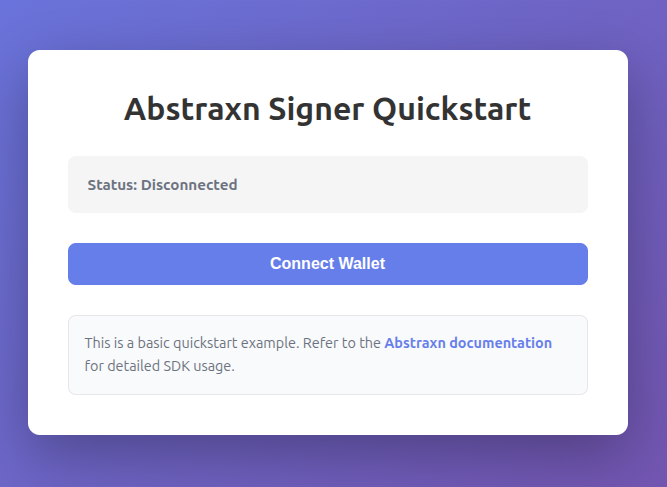
In your terminal, run:http://localhost:5173 (or the port shown in the terminal). When you first open the app, you’ll see the initial screen with the connect wallet button:
4. Connect your wallet
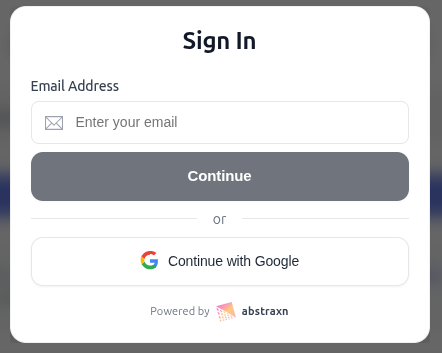
Click the Connect Wallet button to open the Abstraxn onboarding modal. You can use a service like Temp Mail to test logins with throwaway email accounts.Note: Social login (Google, Twitter, Discord) is available once configured in your dashboard. Email OTP authentication works out of the box.
Email OTP Authentication
- Enter your email address in the onboarding modal
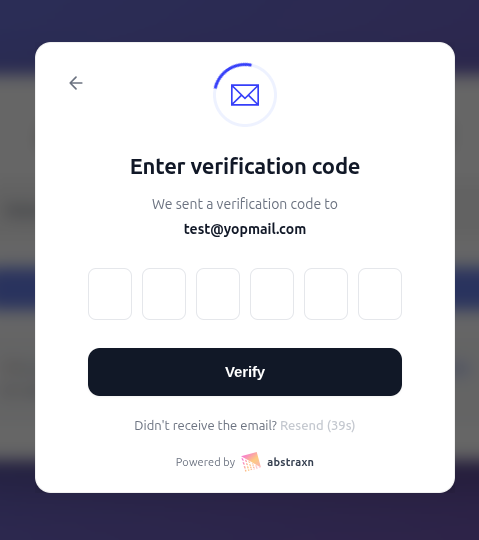
- You will receive a 6-digit authentication code via email
- Enter the code in the verification screen:
Success! 🎉
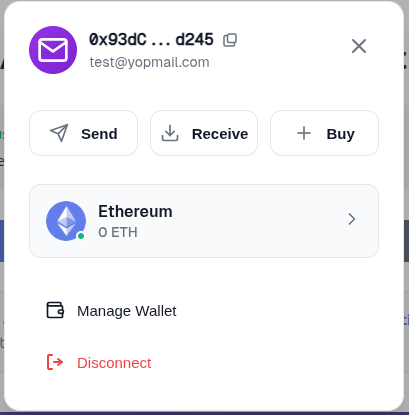
Once you have successfully signed in and your wallet is connected, you’ll see the main app interface displaying your connection status and wallet information: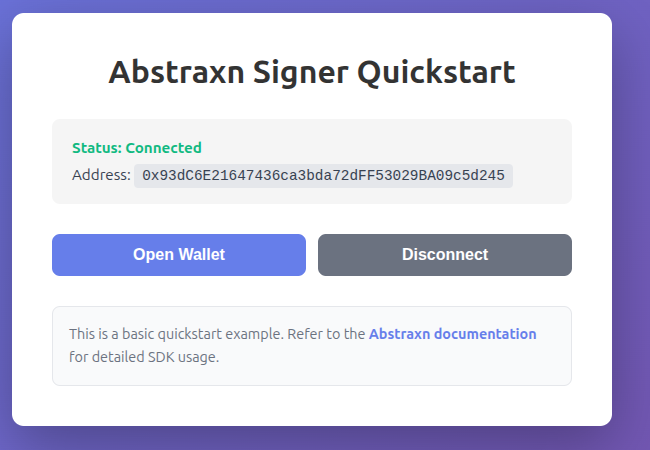 The connected wallet view shows:
- Connection Status: Displays “Connected” in green, confirming your wallet is active
- Wallet Address: Your wallet’s Ethereum address is displayed and can be copied
- Open Wallet Button: Click to open the Abstraxn wallet modal with additional features like:
- Chain/network selector
- Send and receive functionality
- Transaction history
- Wallet management options
- Disconnect Button: Disconnect your wallet when needed
5. Next steps
Congratulations! You’ve successfully set up the Abstraxn Smart Wallets quickstart. Now you can:- Send transactions: Learn how to send transactions using the SDK hooks
- Customize the UI: Customize the wallet UI to match your brand
- Configure authentication: Set up social login and passkeys in the dashboard
- Explore advanced features:
- Smart Accounts - Integrate with various smart account providers
- Paymasters - Enable gasless transactions
- Agentic Layer - MCP tools and agent wallets for your app
Manual Setup (Alternative)
If you prefer to set up from scratch instead of using the template, check out our From Scratch guide for step-by-step instructions.Useful Links
- Dashboard: https://dashboard.abstraxn.com/
- Support: https://www.abstraxn.com/contact-us/
- Documentation: Getting Started